How to setup Kodi 18 with auto frame-rate switching
Latest Kodi 18 can be downloaded here.
Step 1
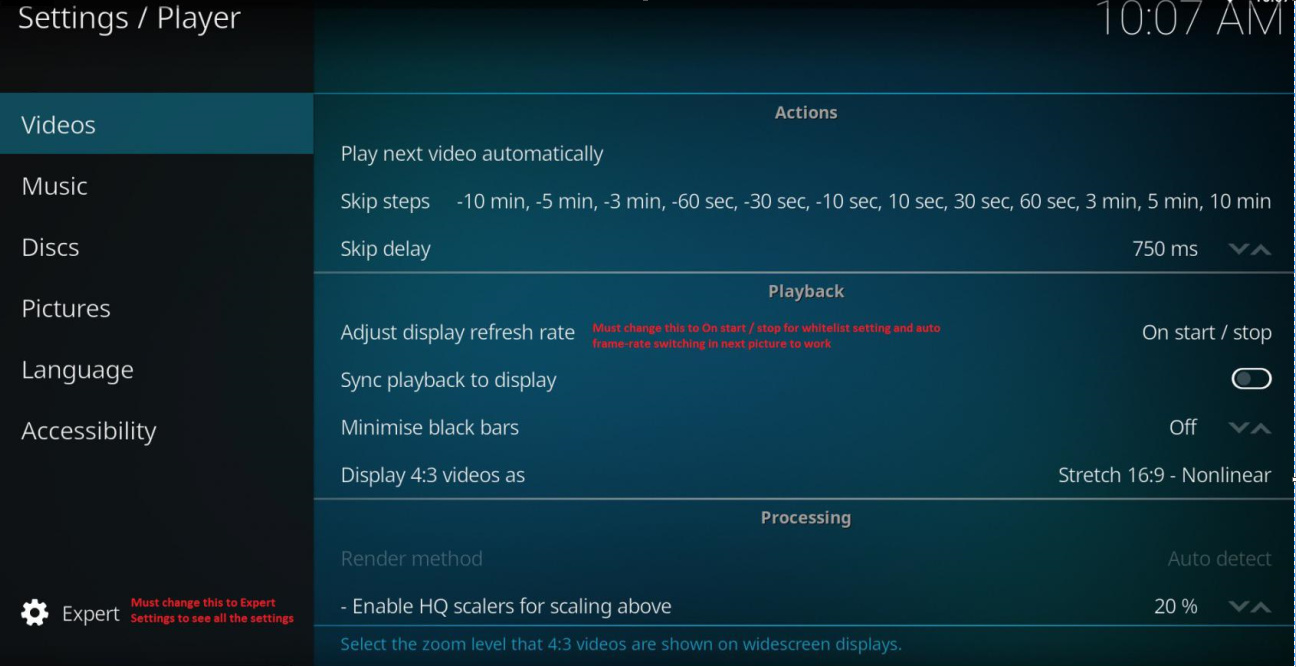
Change to Expert Settings
Change 'Adjust display refresh rate to ‘On start / stop’
If using a lot of IPTV streaming then it might be better to change it to ‘On Start’ so frame-rate switching doesn’t take place after a stream stops too.
Step 2
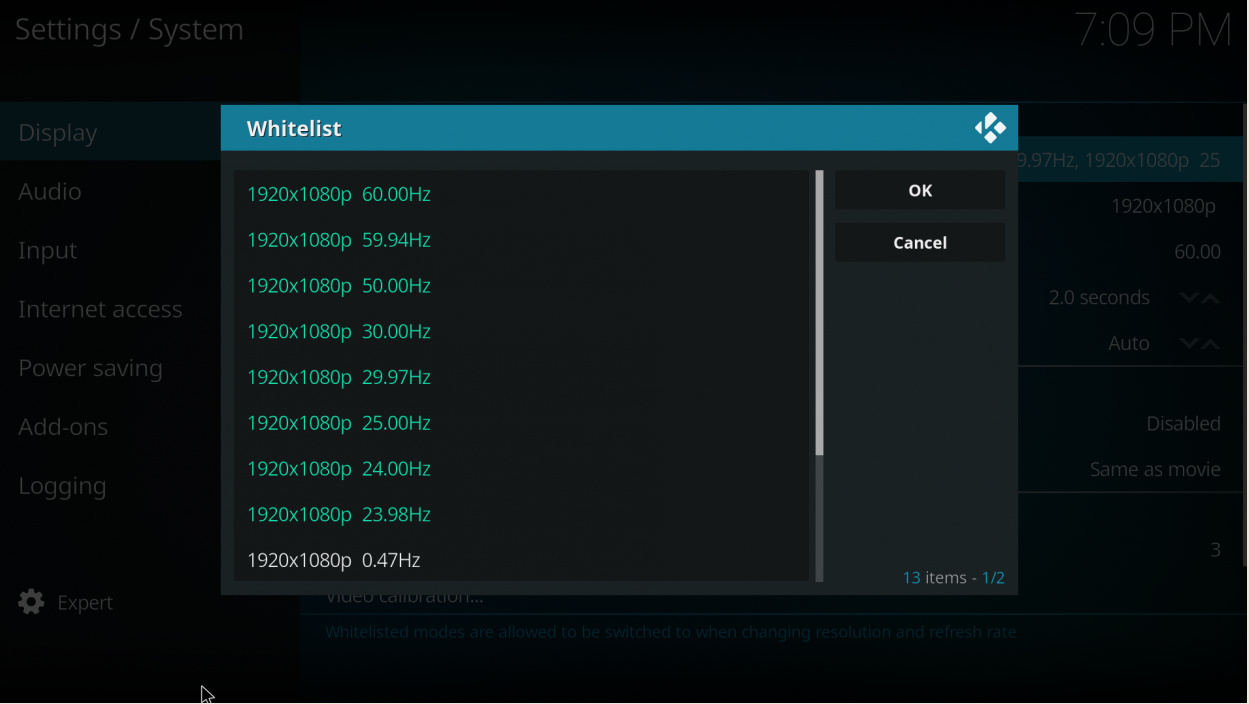
Select all the Whitelist resolutions available.
On a 4K tv you can select all the 4K & 1080p resolutions, 720p and lower are not needed.
On a 1080p tv you can select all the 1080p & 720p resolutions, lower than 720p is not needed.
Step 3
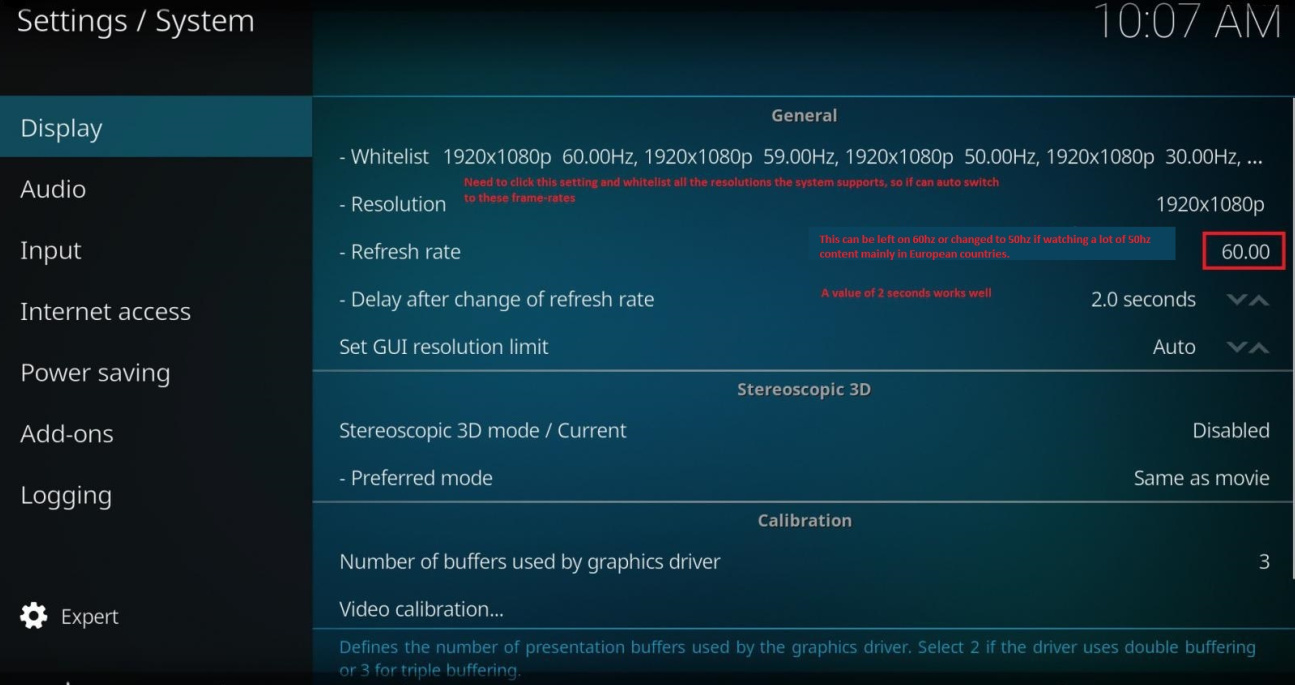
Change the UI refresh rate to 60 or 50hz(if in Europe).
Change the ‘Delay after change of refresh rate’ to 2 seconds or longer/shorter depending on your AVR to get audio right in sync. In most cases you can just leave this setting on the default value.
Your 23.976hps videos will now play correctly at 23.976hz and not at 60hz which resulted in some video stuttering and unsmooth video playback when there were lots of panning, zooming or fast motion scenes. European, Australian users watching Live TV with a DVB dongle or IPTV service can now also watch 1080p@50hz or 4K@50hz smoothly instead of it playing back at 60hz that caused micro video stutters and didn’t have such smooth video playback especially on bigger displays like 4K tv’s.
Remember to activate for
HDR - Enhanced Color Mode / True Color on your 4K HDR tv first and HDMI CEC before you can watch HDR content otherwise it will display in dull colors, non HDR mode.
Also make sure you are using a high quality HDMI 2.0 >16Gpbs speed cable as an HDMI 1.4 cable won’t be able to work with HDR or 4K@50/60hz content. Also check your tv’s manual to make sure all the ports are HDMI 2.0 capable or if only one is, to connect the HDMI cable to the correct HDMI 2.0 capable port.
Additional remote apps for your phone
General AndroidTV remote - https://play.google.com/store/apps/details?id=fr.bouyguestelecom.remote
Kodi remote - https://play.google.com/store/apps/details?id=org.leetzone.android.yatsewidgetfree
Casting videos - https://play.google.com/store/apps/details?id=com.ionitech.airscreen
Screen mirroring - HappyCast: Install the tv box version to RockPi 4 and then the phone app to your phone. http://www.hpplay.com.cn/index_english.jsp
The phone app is now translated from Chinese to English, you can also use an app like BubbleUPnP to cast videos from your phone to the Happycast server app on RockPi 4 if installed, it sometimes works better than the built-in app to receive videos.
I would suggest you to use BubbleUPnP(https://play.google.com/store/apps/details?id=com.bubblesoft.android.bubbleupnp&hl=en_US) or another casting app and then set Kodi up as a UPnP receiver(https://www.youtube.com/watch?v=GFBHi6DSCQc) then videos can be played in Kodi for much better performance.
How to set up Samba shares:
Speed difference between Samba v1 & v2.
Use the Channels app after updating all the apps in the Play Store to set individual Youtube channels as Channels on your homescreen.
It makes the homescreen a lot better.