Android Emulation & The Future of Mobile Desktops
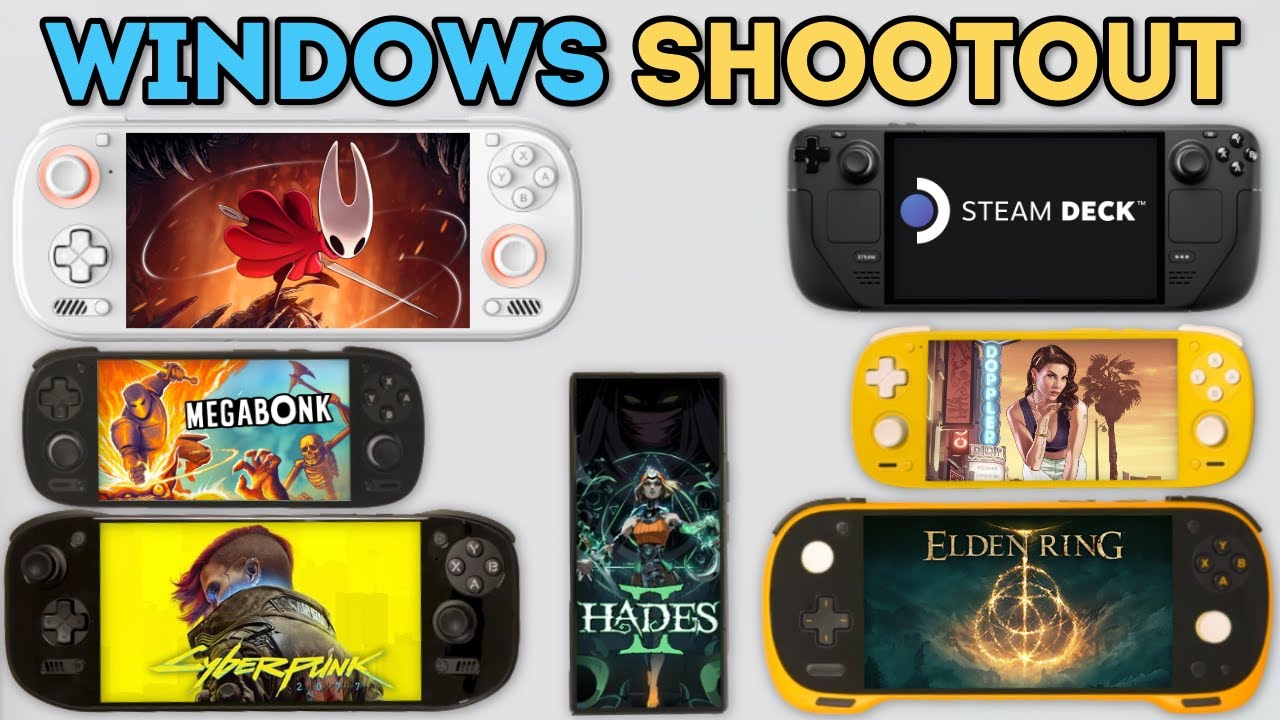
There has been a lot happening lately regarding Android Emulation that I’ve been wanting to discuss. I’d love to share my knowledge and, hopefully, learn from all of you as well.
My Shift from Skepticism to Optimism
I used to be skeptical about using Android as a “daily driver” PC. Since it was designed for portable devices like phones and tablets, it never felt like a priority for desktop-style support on PCs or SBCs (Single Board Computers). During my time experimenting with SBCs, I wasn’t interested in using Android OS as my primary system. Instead, I tried emulating it on Linux using tools like MaliorDroid (Redroid) or Waydroid, but neither provided a smooth user experience.
Eventually, I turned to FydeOS, as they were heavily betting on ARM architecture, and the experience there was actually great.
Why I’m Giving Android a Second Chance
Recently, I acquired a phone with the Qualcomm Snapdragon 8 Elite chipset and decided to see if it could handle a true gaming/desktop experience. My optimism comes from three main trends:
-
Hardware Evolution: Radxa is now producing SBCs powered by Qualcomm chips (like the Dragon Q6A), bridging the gap between mobile power and desktop form factors.
-
Native Desktop Mode: Google is finally working on a native desktop environment (similar to Samsung DeX). With Android 16 and 17, we expect a robust, built-in desktop UI when plugging into a monitor.
-
The ARM & Linux Convergence: If the “merge” between mobile and desktop is done correctly, ARM will become a legitimate alternative to x86 Linux. Furthermore, the Android Terminal (Linux environment) being developed for Android 16/17—though currently a Pixel exclusive shows that Google wants to give us a real Linux interface on our phones.
The Current State of Play
Of course, Google’s plans can change “with the wind,” but the momentum is there. SBC makers are likely to provide better Android support now that desktop modes are becoming standard.
There is a huge amount of hype right now, especially among younger developers, for high-quality, open-source options that allow Android users to emulate other systems with impressive performance.
Please correct me if I’m wrong, but as far as I know, these are the three major options for running Steam with Big Picture mode on Android (essentially turning your phone into a Steam Deck):
The living proof of this is the retro lite radxa cm5 developed by @StonedEdge with @GinKage
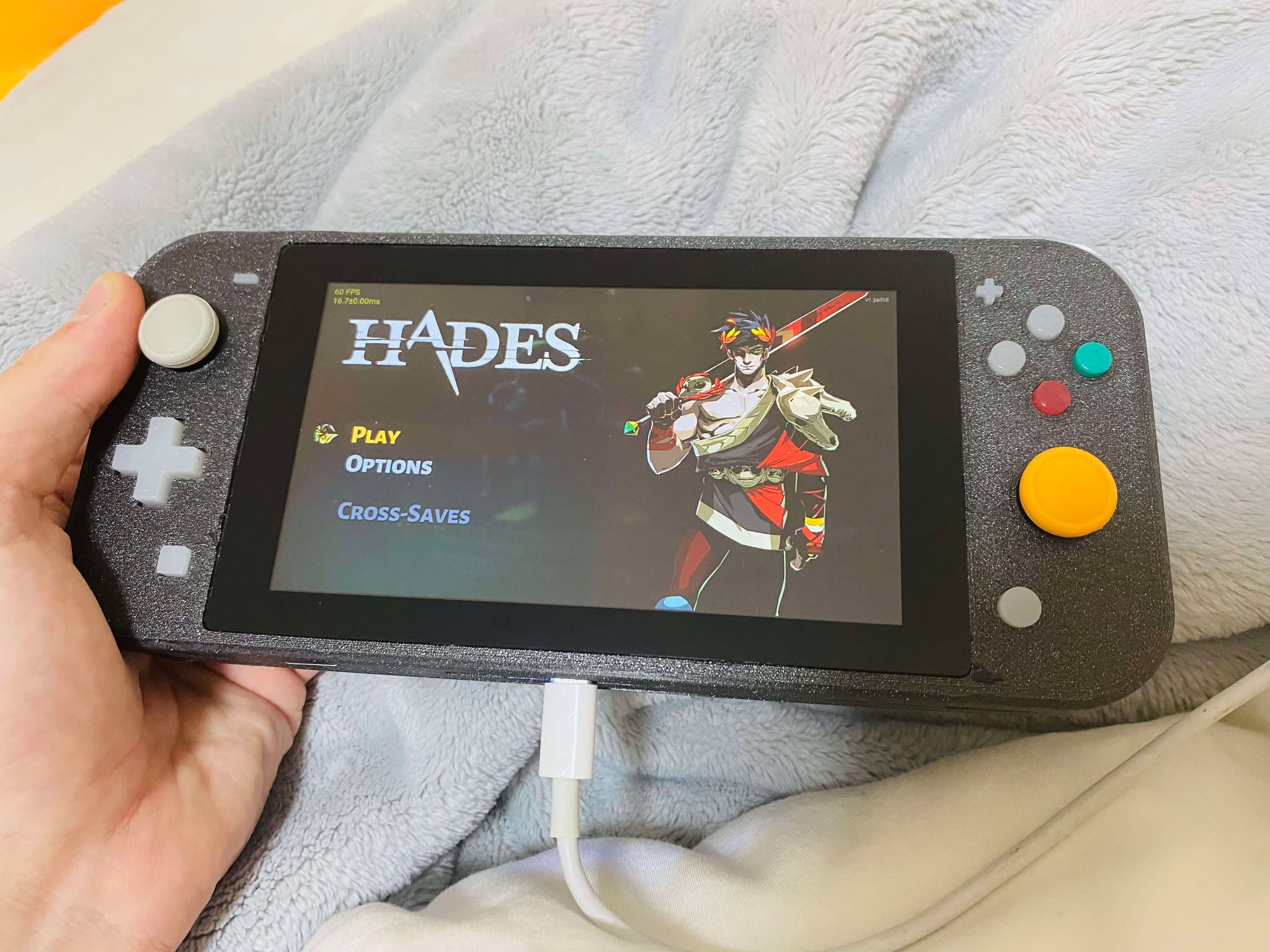
(Retro Lite CM5 - Stoned Edge Bejamin Todd - Hand Held) - Armbian Rockchip Linux Console.
Now.. Containers > Containers and more Containers:
Winlator by Brunodev85 - Glibc
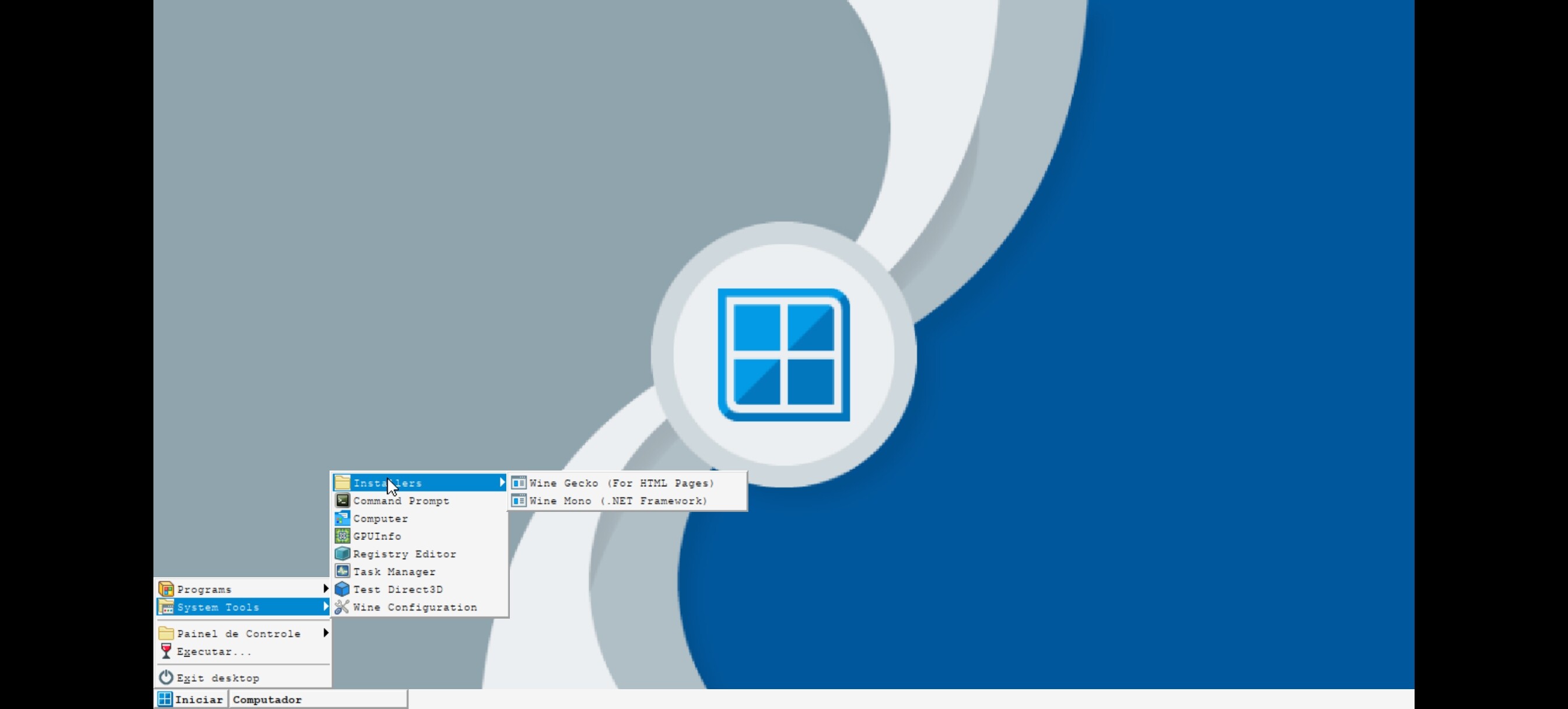
1. Winlator (Glibc) by BrunoDev85
In my opinion, the Glibc version of Winlator by BrunoDev85 is the most advanced and user-friendly option currently available. It offers a sophisticated interface and integrates several powerful tools to make PC emulation on Android possible.
Key Components & Technologies:
-
Glibc Patches: Utilizes patches from Termux Pacman to allow standard Linux libraries to run on Android.
-
Wine: The core compatibility layer for running Windows applications.
-
Box86 / Box64: Developed by ptitSeb, these are essential for translating x86/x64 instructions to ARM.
-
Mesa Drivers: Supports Turnip (for Adreno GPUs), Zink (OpenGL over Vulkan), and VirGL.
-
Graphics Wrappers: * DXVK: Translates DirectX 9, 10, and 11 to Vulkan.
-
VKD3D: Translates DirectX 12 to Vulkan.
-
CNC DDraw: Provides support for older DirectDraw games.
-
In short, this APK has been evolving rapidly by integrating standard technologies to run .exe files more natively on Android. Currently, it remains one of the best and most stable options for running steam.exe on your system.
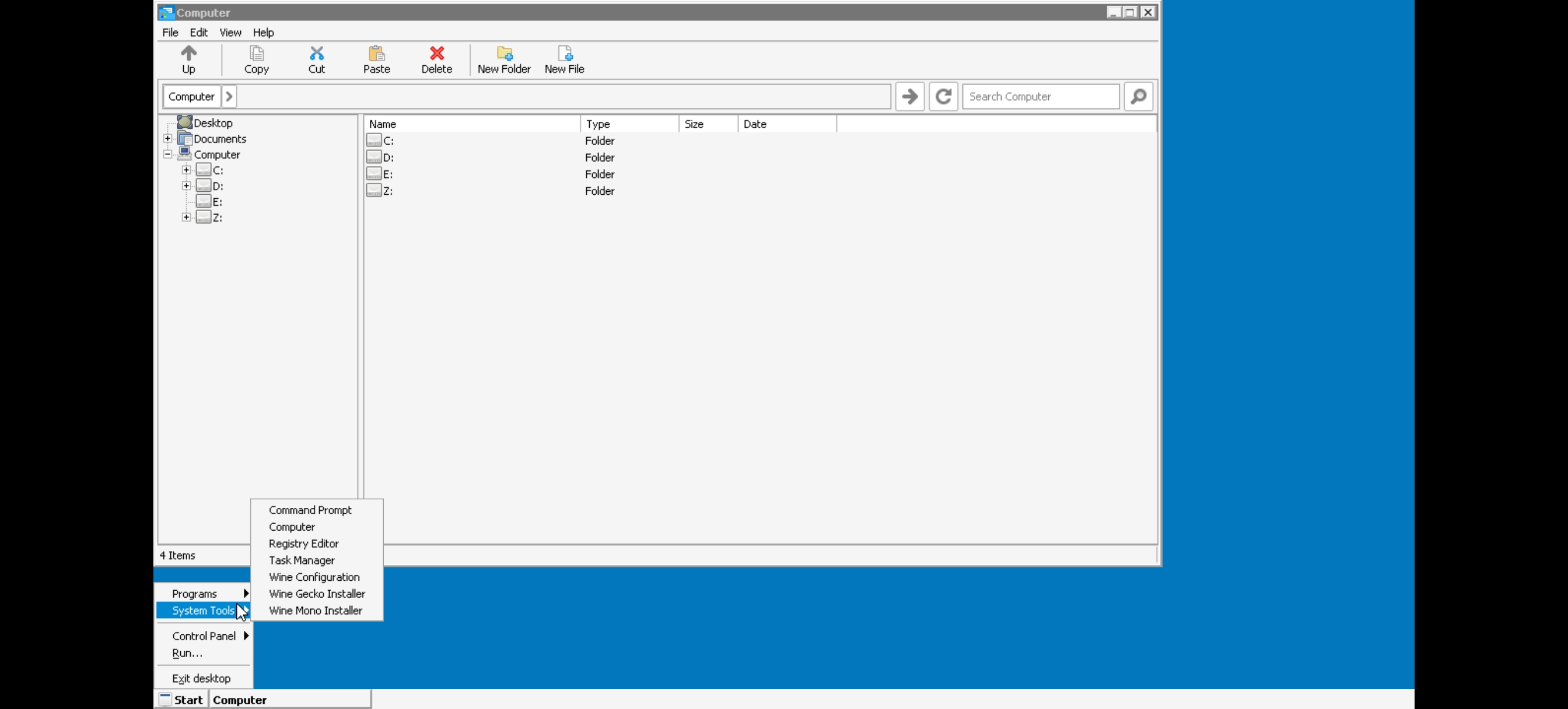
2. Winlator CMod (Bionic) by CoffinColors
Next, there is a very well-known fork of Winlator. While many forks exist, CMod (specifically CMod13) by CoffinColors is arguably the most popular. Unlike the Glibc version, this approach often utilizes a containerized environment to bridge the gap between Android and Linux.
Key Components & Technologies:
-
Ubuntu RootFs (Focal Fossa): Uses a lightweight Ubuntu filesystem as the base environment.
-
PRoot: Enables the guest operating system to run without requiring root access on your device.
-
Wine: The compatibility layer used to execute Windows binaries.
-
Box86 / Box64: The translation layers by ptitSeb that allow x86/x64 software to run on ARM processors.
-
Mesa Drivers: Includes Turnip (optimized for Qualcomm Adreno), Zink, and VirGL.
-
Graphics Wrappers:
-
DXVK: For DirectX 9, 10, and 11 support via Vulkan.
-
VKD3D: For DirectX 12 support via Vulkan.
-
D8VK: Specifically optimized for translating DirectX 8 to Vulkan (great for older classics).
-
Why this version matters:
The use of PRoot and an Ubuntu RootFs makes this fork feel more like a mini-Linux distribution running inside an app. For many users, this setup provides better stability for specific legacy games that require older libraries.
GameHub by Gamesir aka (old gamefusion)
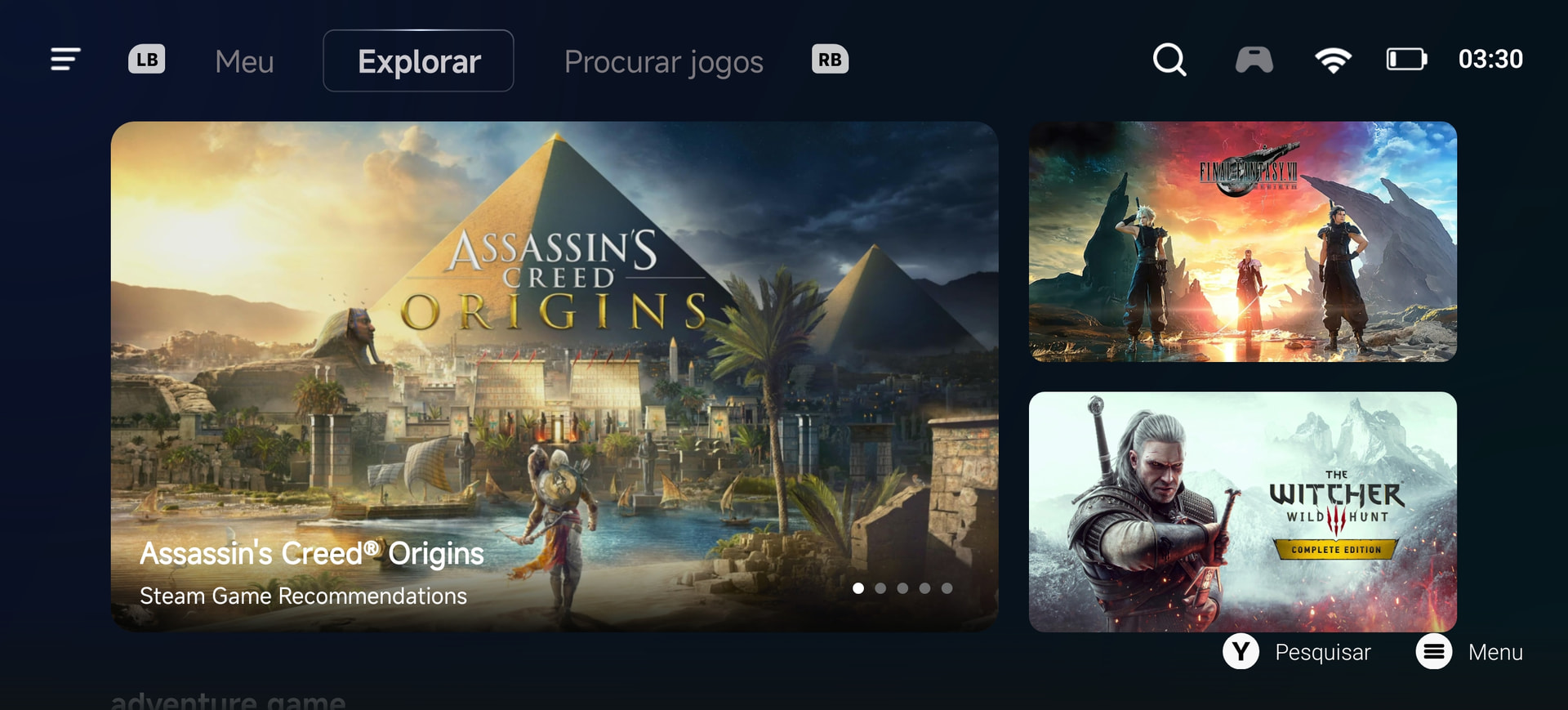
3. GameHub (formerly GameFusion) by GameSir
The “crown jewel” in terms of accessibility is GameHub, an app developed by GameSir (the well-known Chinese gaming controller manufacturer).
There is a significant amount of controversy regarding this app. It appears GameSir has developed this in a closed-source manner, utilizing many of the open-source technologies available on GitHub—such as those mentioned above—often without giving proper credit or even a “thank you” to the original developers.
My Take: Acknowledging the developers who made this possible is the bare minimum, in my opinion—especially when you are using their hard work to drive sales of your own gamepads.
The User Experience
Despite the ethical concerns, the app is “fancy.” They have developed arguably the best interface for mobile users. It is incredibly intuitive; changing and adapting settings is easy and lacks the steep learning curve found in Winlator. Unlike other setups, this feels like a native phone app designed for a seamless “plug and play” experience.
The Cons & Risks:
-
Account Requirements: You must provide a valid email address, and each device is locked to a single account.
-
Privacy Concerns: The app uses Chinese telemetry to collect usage data. While some view this as “spyware,” others argue it’s simply the modus operandi for many Chinese tech companies. Regardless, it is something to keep in mind if you value privacy.
-
The Play Store Version: Avoid the version on the Google Play Store. Due to Google’s policies against apps that “install other apps,” the Play Store version often lacks the ability to import your own .exe files. To get the full functionality, you generally have to use the official APK from their website.
Official Site: https://gamehub.xiaoji.com/
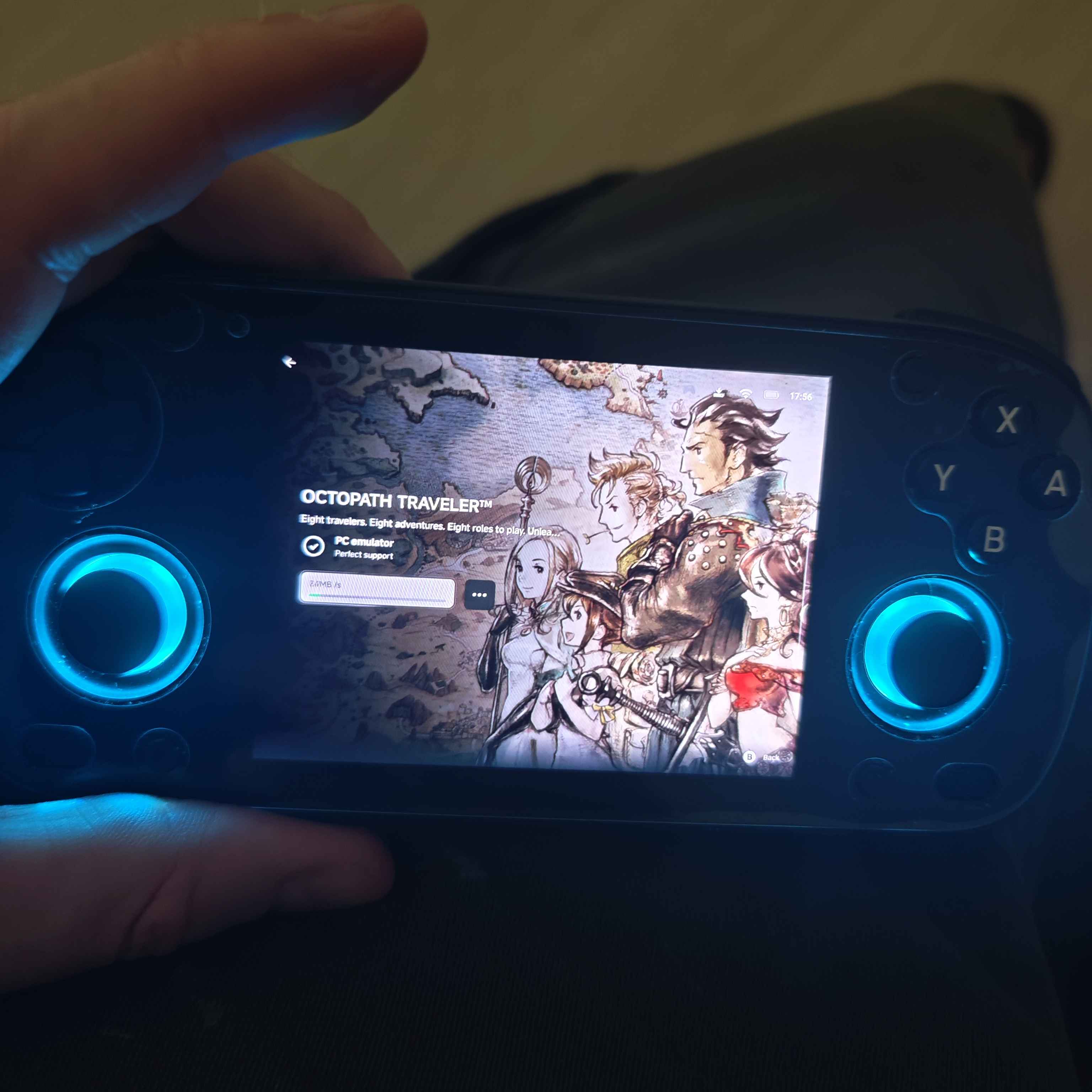
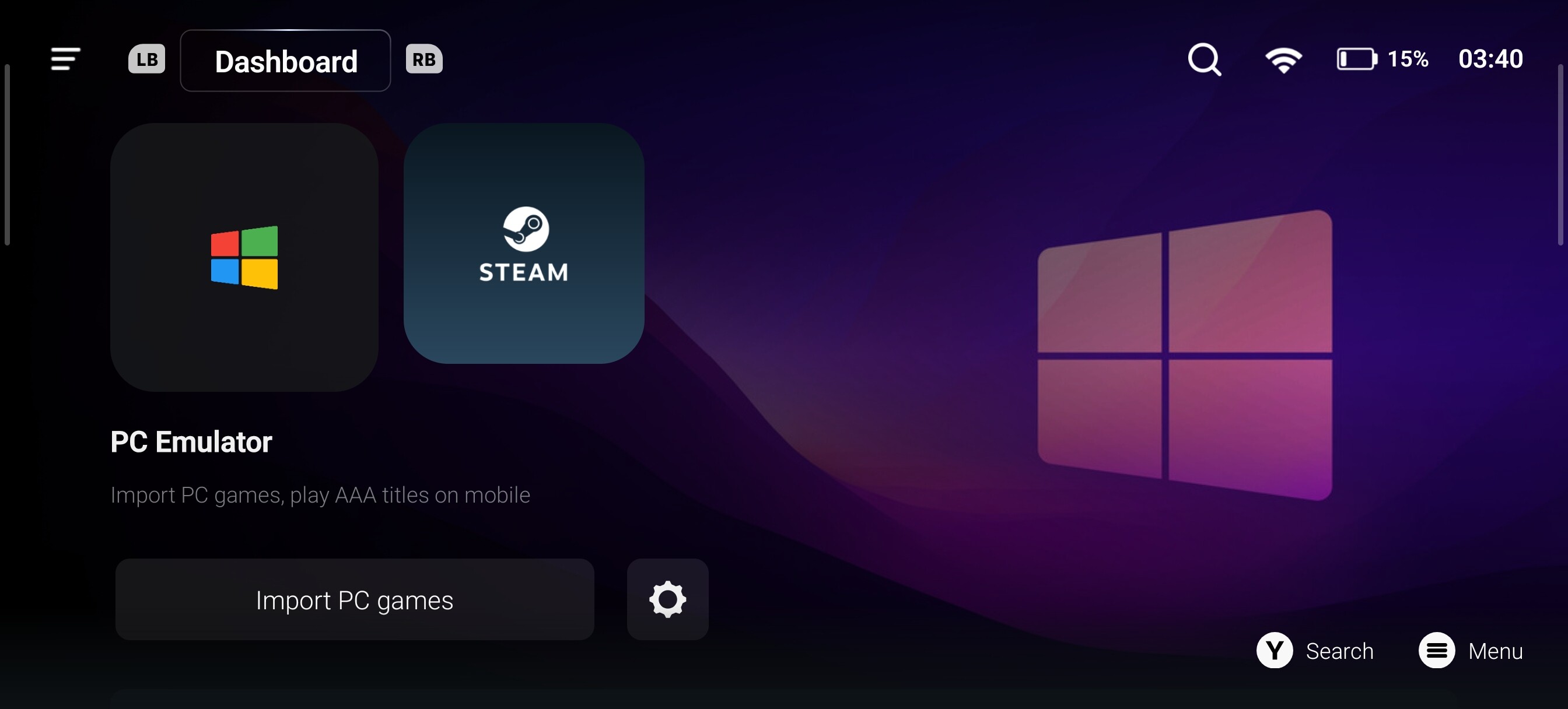
GameHub Lite
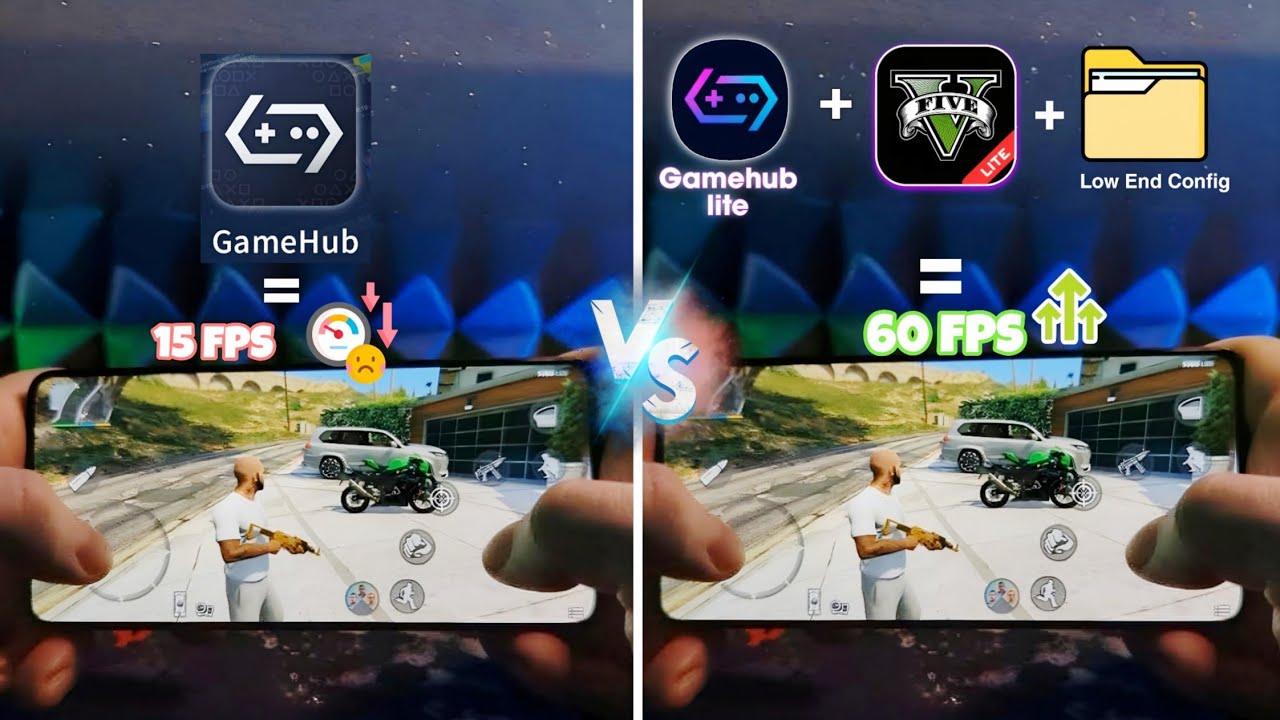
Because of the issues mentioned above, some talented independent developers decided to “dissect” GameHub. Their goal was to strip away the unwanted telemetry and tracking while keeping the core experience intact.
The result is a “Lite” version that is clean, lightweight, and much easier to run on any device. It provides the same high-quality interface and performance as the original, but without the privacy concerns or the mandatory account logins.
How it Works: From PC to Android
All three of these applications function similarly in practice. They allow you to bring your Windows library to your mobile device using two main methods:
-
Direct Installation: You can run a game’s setup.exe or installer.exe directly within the app. This simulates a Windows environment, allowing you to install the game just as you would on a PC.
-
Portable/Pre-installed Folders: Alternatively, you can simply copy a pre-installed game folder (for example, from your Steam “common” folder or a GOG installation) from your PC to your phone’s storage. You then point the app to the main game executable (.exe) to start playing.

The Future: Native ARM Gaming and the “Steam Frame”
If I can run Steam Big Picture on my phone today, I am confident you can run GameHub on Radxa Single Board Computers using Android images. I plan to test this myself as soon as I can find the time—lately, Where Winds Meet has been sucking my soul dry! (And incredibly, that’s not even through emulation; it’s a native Android title from the Play Store that looks stunning).
If you’ve been following the news, you’ll know that the Google/Epic Games settlement is a huge win for us. With Unreal Engine 5.4 and beyond, we are going to see a massive influx of high-level, native Android ports. For example, the Tomb Raider (Survivor Trilogy) port by Feral Interactive is coming in early 2026, proving that “mobile” gaming is catching up to consoles.
Furthermore, Valve’s recent announcement of the Steam Frame—a standalone VR headset running on a Qualcomm ARM chipset—is the smoking gun we’ve been waiting for. This almost guarantees that Valve is developing a native ARM version of SteamOS. Once that is finalized, we may finally get the official, native Steam app for Android that we’ve all been dreaming of.
Console Emulation: A Legal and Technical Minefield
Console emulation remains a sensitive subject, particularly due to the legal pressure from companies like Nintendo. However, the scene is more resilient than ever. While some big names have disappeared, new projects continue to emerge, decentralizing the community and making it harder to shut down.
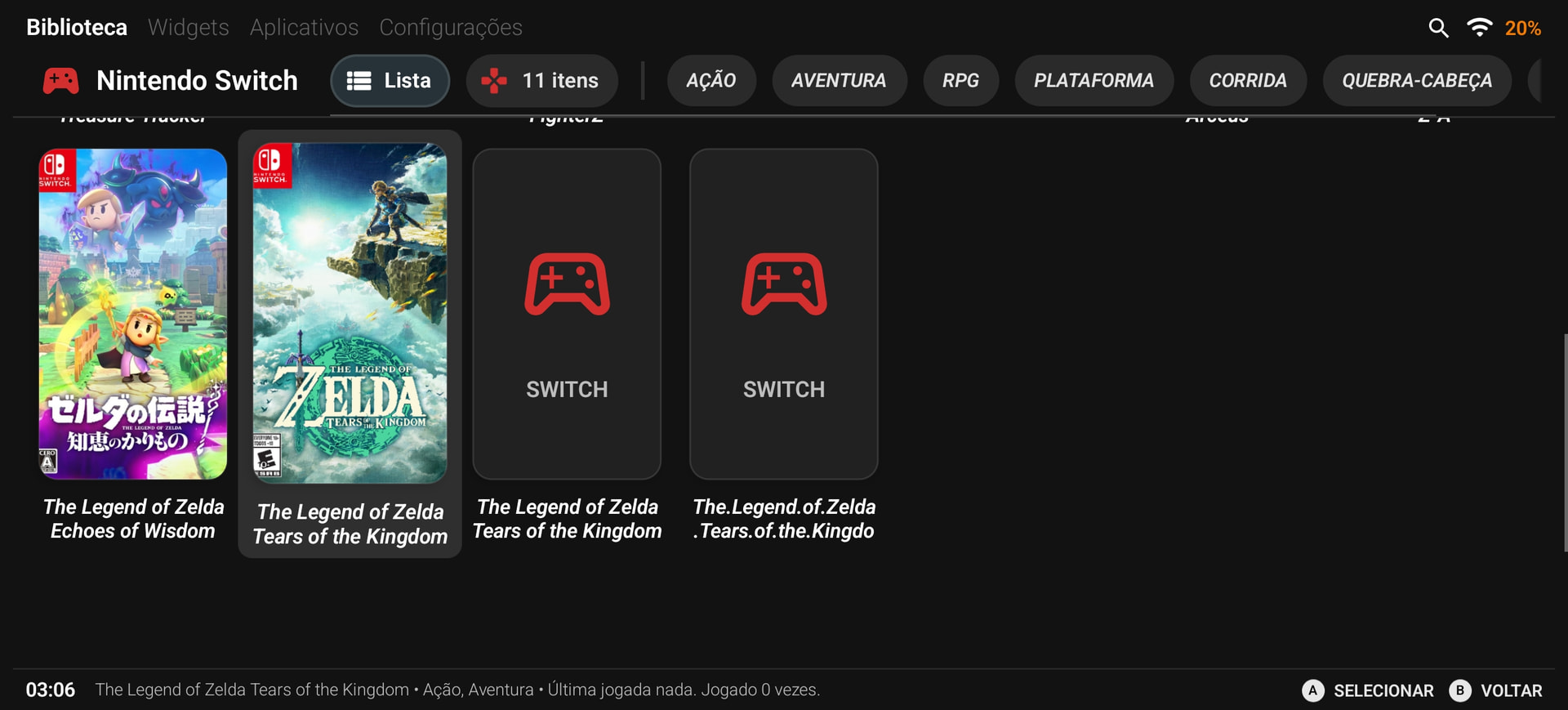
Beyond the emulators themselves, there is an entire category of Android Launchers (Front-ends) that are being developed to turn your phone into a professional gaming console. Surprisingly, these aren’t talked about nearly enough!
The Best Console-Style Launchers for 2025
If you want your phone (or Radxa board) to feel like a Steam Deck or a Nintendo Switch, you need a high-quality front-end. Here are the top contenders:
-
ES-DE (EmulationStation Desktop Edition): This is widely considered the gold standard. It’s a paid app, but it offers a premium, highly customizable experience with beautiful themes and a robust scraping system for game art.
-
Daijishō: The most popular free option. It is incredibly easy to set up and features a clean, “wallpaper-style” aesthetic. It’s perfect for those who want a great look without spending a dime.
-
Beacon Launcher: A newer, lightweight favorite. It focuses on a modern, minimalist UI (similar to the Apple TV or PS5 interface). It is fast, frequently updated, and very easy to navigate with a controller.
-
Gamedeck: An indie gem that specifically targets the “handheld console” look. It’s very polished and great for organizing both your emulated library and your native Android games in one place.
-
iiSU (Alpha): For those using dual-screen setups (like the Ayaneo Pocket DS or even a phone with a secondary display), this is a project to watch. It is currently in alpha but is being built specifically for the next generation of handhelds.
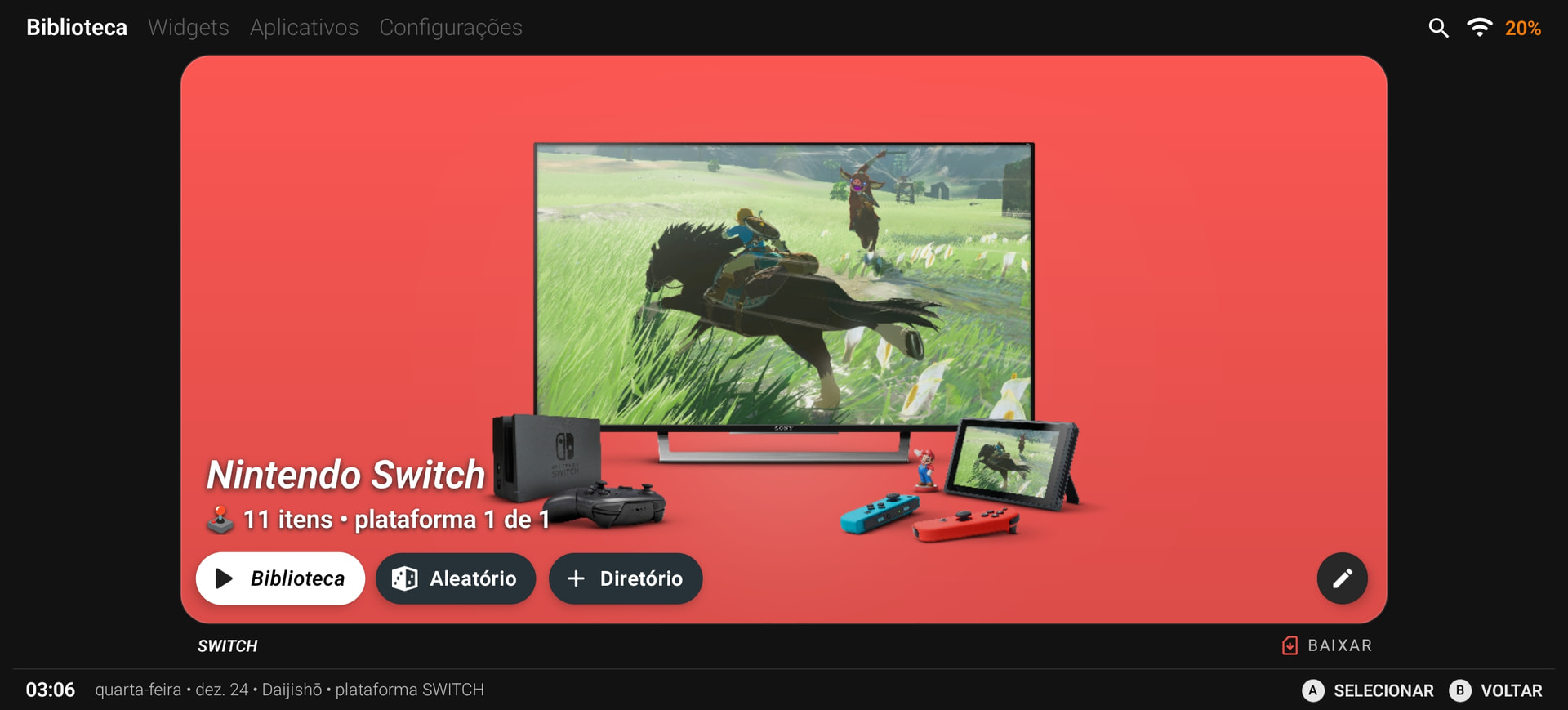
GameDeck - This one is growing and still being developed (my personal favourite).
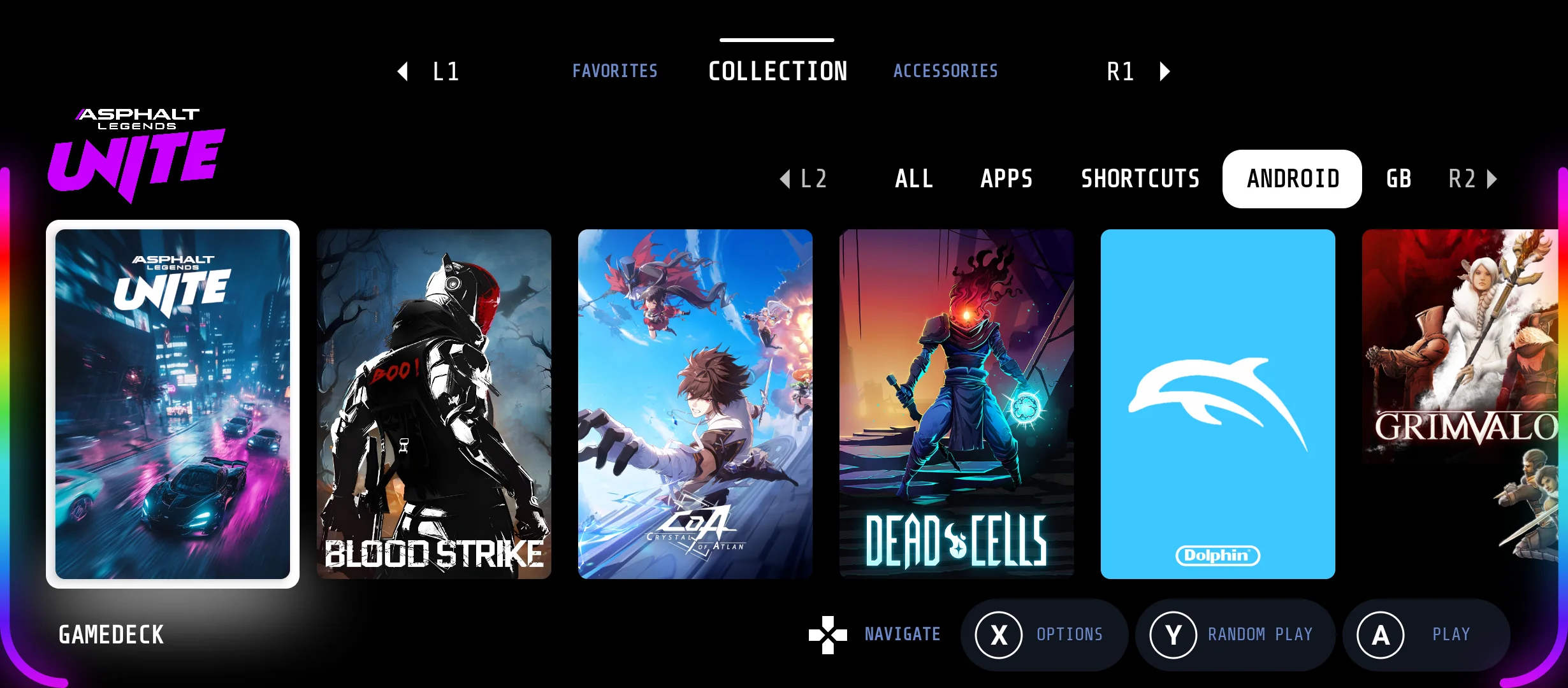
The developer is very active on reddit here:
https://www.reddit.com/r/GamedeckApp/s/5B3S3pkybo
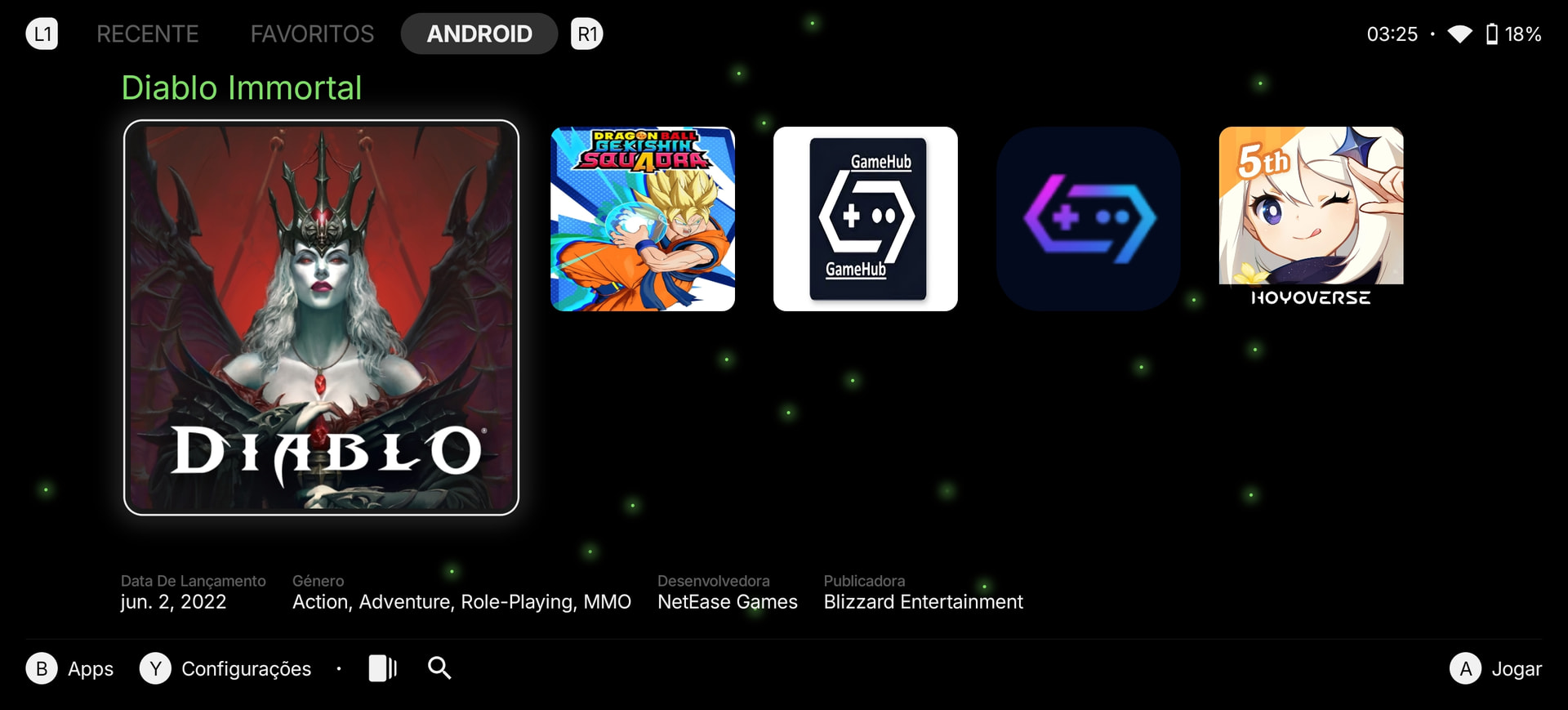
This one has some playstation 2/3 vibes.
Console Emulation:
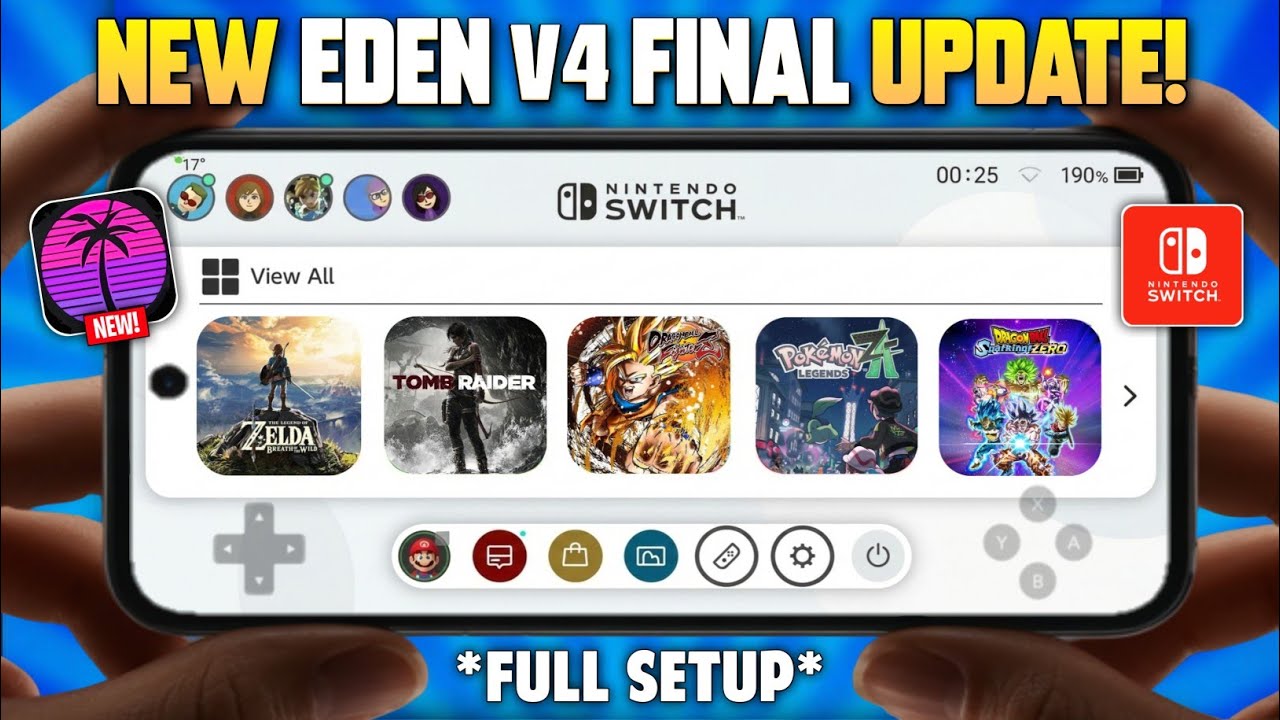
Then there are the emulators such as Eden, Benji, Kenji, Citron, and Yalla/Yatta/Halla.
For these, here is my main recommendation:
You can find the necessary Qualcomm drivers here: K11MCH1/AdrenoToolsDrivers.
From what we know, standard Adreno drivers are “okay,” but Turnip drivers are generally considered the best. However, Turnip drivers usually take longer to be released and can sometimes lag behind Adreno in terms of raw performance.
These drivers are updated frequently. Interestingly, the latest Qualcomm drivers have been working on Mali devices as well. Apparently, the same drivers used for the Snapdragon 8s Gen 3 (Elite) are now being used to run GTA V on GameHub—even on phones with Mali CPUs.
Key Changes Made
-
Punctuation & Flow: Used em-dashes and bolding to make the list of emulators and driver names stand out.
-
Clarified “Turnip” context: Fixed the phrasing “late and loose” to “longer to be released” and “lag behind,” which makes the performance comparison clearer.
-
Technical Accuracy: Corrected “Elite 8s” to “8s Gen 3 (Elite)” or similar to reflect the likely hardware you’re referring to.
-
Grammar: Fixed “For what its known” to “From what we know” and corrected “its often updated” to “they are often updated.”
Now technical details (FAQ):
Installation & Directories
Where are Steam games installed?
The default folder is steamapps. On most mobile setups, this is usually located on the D: partition.
Compatibility & Performance
Q: Can I run multiple emulation apps using the same steam.exe installation?
A: It’s complicated. While it is technically possible because Steam auto-updates, it often causes issues. Sometimes the process hangs while replicating files or fails to delete temporary data, creating an endless loop.
Furthermore, if you install GameHub via APK, install Steam, and then later update GameHub through the Play Store, your file permissions may get locked. This will break the steam.exe installation. While versions like Winlator Bruno and CMod13 can technically share the same .exe, the experience is rarely smooth.
Tip: Having duplicate installs of the same game in different directories or reinstalling Steam multiple times often leads to errors. A better approach is to stick with GameHub and use its internal Steam API rather than importing an external steam.exe.
Storage & Privacy
Q: I installed a game, and now all the game icons and images are appearing in my phone’s gallery/camera roll. How do I fix this?
A: Download an app called “Nomedia” (or create a blank file named .nomedia inside the folder). Add the Steam directory to the app; this prevents your phone from scanning that folder for media, keeping the game images out of your gallery.
Drivers
Q: Can I use the latest Adreno or Turnip drivers on any emulation app (Console or Windows)?
A: Yes. You should download the latest versions. They generally work for both console and PC emulation, though success depends on your specific chipset and its compatibility with that particular driver version.
Key Improvements
-
Permissions: Clarified that updating via the Play Store causes “file permissions” to lock, which is why the app stops working.
-
Terminology: Changed “writing files” to “file permissions” and “stucking you” to “creating an loop.”
-
Formatting: Used bold headers and horizontal rules to make the FAQ much easier to scan.