PART3
If you got this far and had a successful boot, you will want to extend the partition to use all available space. Unfortunately, you have to do it manually with fdisk or use a script available from well-known distros or a simpler method (resize2fs) while running.
Checking if the camera is recognized
rock@rock5c:~$ dmesg|grep -i imx
[ 11.464872] platform csi2-dphy0: Fixed dependency cycle(s) with /i2c@feab0000/camera-imx477@1a
[ 11.465364] imx477 3-001a: camera_default_mode: default_4048x3040
[ 11.465440] imx477 3-001a: Looking up VANA-supply from device tree
[ 11.465444] imx477 3-001a: Looking up VANA-supply property in node /i2c@feab0000/camera-imx477@1a failed
[ 11.465457] imx477 3-001a: supply VANA not found, using dummy regulator
[ 11.465495] imx477 3-001a: Looking up VDIG-supply from device tree
[ 11.465499] imx477 3-001a: Looking up VDIG-supply property in node /i2c@feab0000/camera-imx477@1a failed
[ 11.465508] imx477 3-001a: supply VDIG not found, using dummy regulator
[ 11.465524] imx477 3-001a: Looking up VDDL-supply from device tree
[ 11.465528] imx477 3-001a: Looking up VDDL-supply property in node /i2c@feab0000/camera-imx477@1a failed
[ 11.465537] imx477 3-001a: supply VDDL not found, using dummy regulator
[ 11.475292] imx477 3-001a: Device found is imx477
[ 11.589897] imx477 3-001a: Consider updating driver imx477 to match on endpoints
[ 11.589928] rockchip-csi2-dphy csi2-dphy0: dphy0 matches m00_f_imx477 3-001a:bus type 5
[ 13.290265] iqfile: imx477_IMX477_default_4048x3040.json
Using the camera
The available tools to grab images from the camera are:
- ffmpeg / ffplay
- gstreamer (need to update some packages)
- fswebcam
Here are some examples:
- 12.3 M mode (10 fps)
ffplay -f v4l2 -pixel_format nv12 -framerate 30 -video_size 1920x1080 -i /dev/video11 -top 0 -left 0
DISPLAY=:0.0 ffplay -f v4l2 -pixel_format nv12 -framerate 30 -video_size 4064x3040 -i /dev/video11
fswebcam --displayfps 1 -S 90 -d /dev/video11 -r 4064x3040 --jpeg 95 -p NV12 - > 4064x3040_1.jpg
- 50 fps mode
ffplay -f v4l2 -pixel_format nv12 -framerate 30 -video_size 2016x1080 -i /dev/video11 -top 0 -left 0
Weston
By default, the image runs on CLI but you can fire Weston for graphical apps.
Type in the command (not from ssh):
weston
Now you can run graphics apps from ssh
If you want weston with command line and windowing, edit .config\weston.ini and comment on the lines that disable bar and window.
If you want to boot with weston, you must manually add the Weston service.
Gstreamer
I was focused on ffmpeg / ffplay, and had gstreamer working fine, but i must have removed some packages, i need to review which one(s).
Looks like the dma-buf patch to fix ffmpeg broken the gstreamer, if you want to use gstreamer try to unzip the file mpp.zip (attached) to a /tmp, install the deb packages with *'sudo dpkg -i *.deb’ and reboot. Unfortunately, you have to make a choice, ffmpeg / ffplay with HW encoder/decoder/acceleration or gstreamer with HW encoder/decoder/acceleration due to the dma-buf patch for ffmpeg.
More about the ffmpeg fix here: ( [FFmpeg] Introduce FFmpeg-Rockchip for hyper fast video transcoding via CLI - #107 by avaf )
mpp.zip (1.1 MB)
try gstreamer:
gst-launch-1.0 v4l2src device=/dev/video11 io-mode=dmabuf ! ‘video/x-raw,format=NV12,width=1920,height=1080,framerate=30/1’ ! glimagesink
Changing camera mode
You have a directory with pre-made modes, you just copy it to the boot.
ls ~/dtb
rk3588s-rock-5c.dtb_IMX477_2016x1080_50fps
rk3588s-rock-5c.dtb_IMX477_2016x1520_40fps
rk3588s-rock-5c.dtb_IMX477_4048x3040_10fps
- 50 fps mode:
cd ~/dtb
rock@rock5c:~/dtb$ sudo cp -vf rk3588s-rock-5c.dtb_IMX477_2016x1080_50fps /boot/dtbs/6.1.43-rk3588-v4l2-cam/rockchip/rk3588s-rock-5c.dtb
‘rk3588s-rock-5c.dtb_IMX477_2016x1080_50fps’ → ‘/boot/dtbs/6.1.43-rk3588-v4l2-cam/rockchip/rk3588s-rock-5c.dtb’
sudo reboot
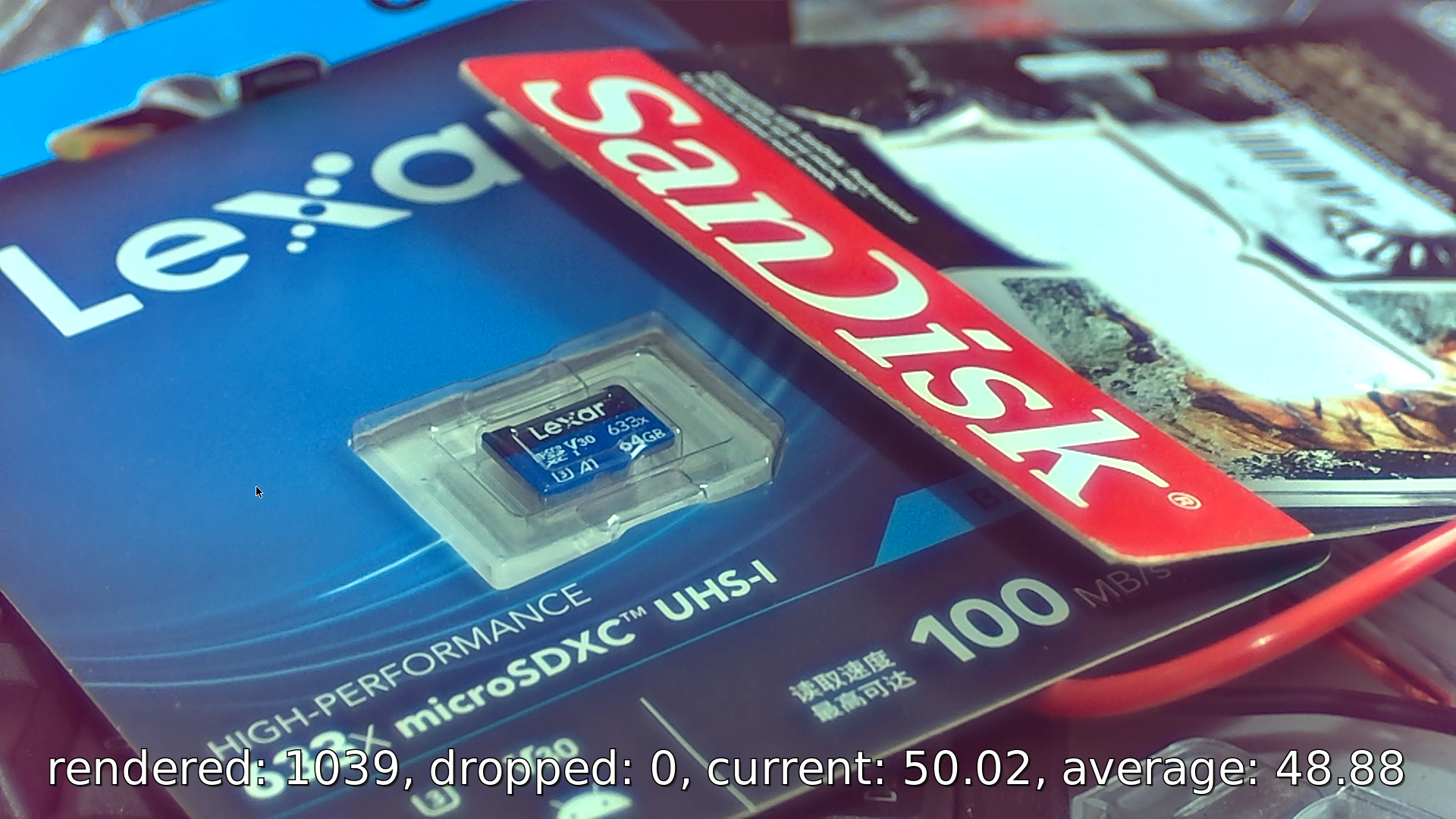
Check FPS with gstreamer (after you restore/rollback dma-buf ffmpeg fix, see above), fire weston and:
GST_GL_X11_NO_DECORATIONS=1 DISPLAY=:0.0 gst-launch-1.0 v4l2src device=/dev/video11 io-mode=dmabuf ! ‘video/x-raw,format=NV12,width=1920,height=1080,framerate=50/1’ ! fpsdisplaysink video-sink=waylandsink sync=false
Performance / Optimizations
Set performance governor with:
p.sh.zip (407 Bytes)
If you like to be on the edge you can set frequencies and governor to performance and get a boost.
Save the attached file p.sh, set run flag: sudo chmod +x ./p.sh and run with sudo, like this:
rock@rock5c:~$ sudo ./p.sh
CPU0-3 Available Frequencies:
408000 600000 816000 1008000 1200000 1416000 1608000 1800000
performance
CPU0-3 current freq:
1800000

CPU4-5 Available Frequencies:
408000 600000 816000 1008000 1200000 1416000 1608000 1800000 2016000 2208000 2304000
performance
CPU4-5 current freq:
2304000

CPU6-7 Available Frequencies:
408000 600000 816000 1008000 1200000 1416000 1608000 1800000 2016000 2208000 2304000
performance
CPU6-7 current freq:
2304000

NPU Available Frequencies:
300000000 400000000 500000000 600000000 700000000 800000000 900000000 1000000000
performance
NPU current freq:
1000000000

GPU Available Frequencies:
1000000000 900000000 800000000 700000000 600000000 500000000 400000000 300000000
GPU current freq:
1000000000
Monitor
mon.sh.zip (445 Bytes)
With a new ssh connection, you can monitor the performance, like this:
rock@rock5c:~$ sudo chmod +x mon.sh
rock@rock5c:~$ sudo ./mon.sh
[sudo] password for rock:
 CPU0-3  CPU4-5  CPU6-7     DDR     DSU     GPU     NPU
   1800    2304    2304     528    1800     200     200
   1800    2304    2304     528    1800     200     200
   1800    2304    2304     528    1800     200     200
   1800    2304    2304    2112    1800    1000     200
   1800    2304    2304    2112    1800    1000     200
   1800    2304    2304    2112    1800    1000     200
   1800    2304    2304    2112    1800    1000     200
   1800    2304    2304    2112    1800    1000     200
   1800    2304    2304    2112    1800    1000     200
   1800    2304    2304     528    1800     200     200
   1800    2304    2304     528    1800     200     200
Benchmark
After you set performance governor you can run glmark2 to check the score.
- In the main console, run :
weston
- in an SSH connection, run :
sudo ./p.sh
- in an shh connection, run :
rock@rock5c:~$ glmark2-es2-wayland
arm_release_ver of this libmali is 'g6p0-01eac0', rk_so_ver is '6'.
=======================================================
    glmark2 2021.02
=======================================================
    OpenGL Information
    GL_VENDOR:     ARM
    GL_RENDERER:   Mali-LODX
    GL_VERSION:    OpenGL ES 3.2 v1.g6p0-01eac0.ba52c908d926792b8f5fe28f383a2b03
=======================================================
[build] use-vbo=false: FPS: 4235 FrameTime: 0.236 ms
[build] use-vbo=true: FPS: 5263 FrameTime: 0.190 ms
[texture] texture-filter=nearest: FPS: 3939 FrameTime: 0.254 ms
[texture] texture-filter=linear: FPS: 3421 FrameTime: 0.292 ms
[texture] texture-filter=mipmap:^C FPS: 3843 FrameTime: 0.260 ms
=======================================================
                                  glmark2 Score: 4140
=======================================================